


Convert PowerPoint PPT to JPEG
By converting your PowerPoint presentation files to the JPEG format you make them compatible with any computer or a smartphone. PowerPoint files converted to JPEG can become effective for the website design.
On this page:
- How to convert PowerPoint to JPEG?
- Combine several PowerPoint slides into a single JPEG
- Crop empty margins of each slide
- Place watermark on each JPEG file you have created
- Convert PowerPoint to JPEG in batch mode
- Automatic conversion of PowerPoint to JPEG
- PowerPoint to JPEG code examples for developers
How to Convert PowerPoint to JPEG
- Download and install Universal Document Converter
- Open Microsoft PowerPoint presentation
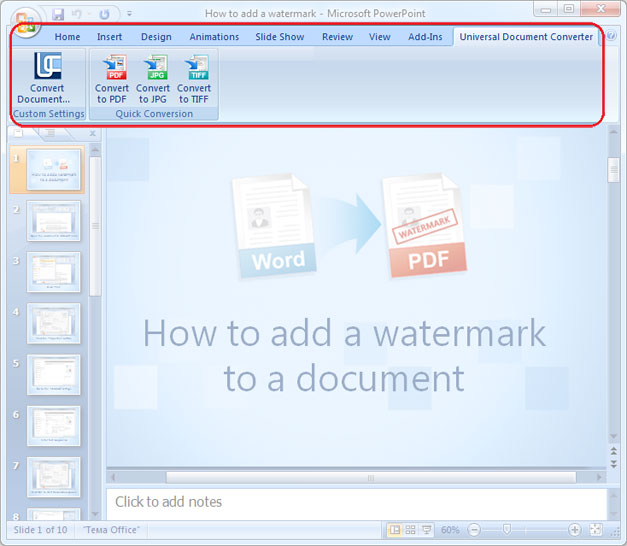
- Go to Universal Document Converter toolbar and click to Convert to JPEG
Combine Several PowerPoint Slides into a Single JPEG
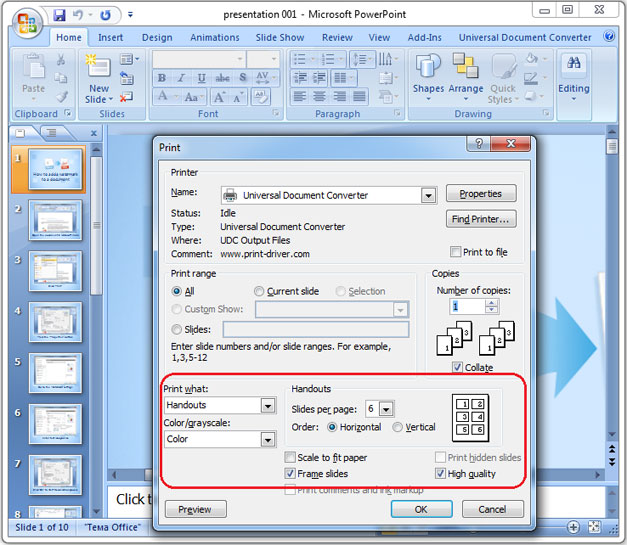
- Open PowerPoint presentation and click Print
- Select Print Handouts and the number of slides per page like shown on the screenshot below
- Select Universal Document Converter from the list of printers and click Properties
- Go to File Format and select JPEG Image
- Click OK and print your PowerPoint presentation in the JPEG format using Universal Document Converter as a printer
Crop Empty Margins of Each Slide
You can automatically remove the empty margins from the PowerPoint slides when converting PowerPoint to JPEG.
- Open PowerPoint presentation and click Print
- Select Universal Document Converter from the list of printers and click Properties
- Go to File Format and select JPEG Image
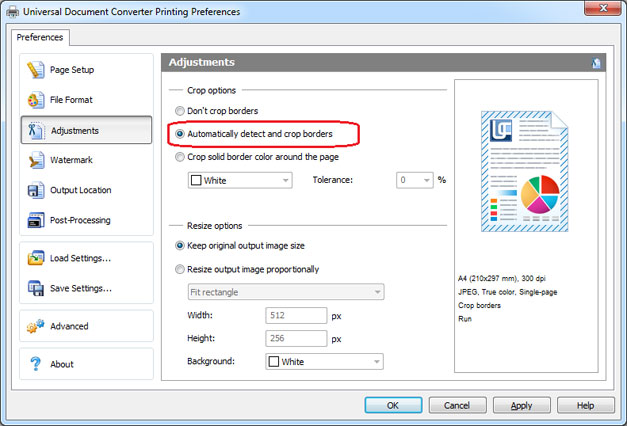
- Go to Adjustments and check Automatically detect and crop borders like shown on the screenshot below
- Click OK and print PowerPoint presentation in the JPEG format using Universal Document Converter as a printer
Place Watermark on Each JPEG File You Have Created
- Open PowerPoint presentation and click Print
- Select Universal Document Converter from the list of printers and click Properties
- Go to File Format and select JPEG Images
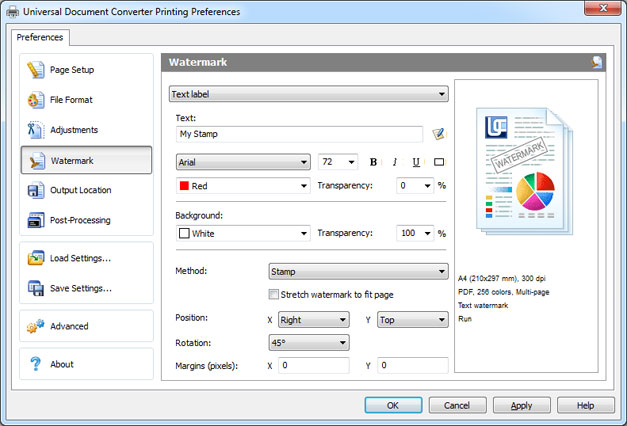
- Go to Watermark and select Text label or Picture – depending on the type of the watermark you prefer
- Click OK and print PowerPoint presentation in the JPEG format using Universal Document Converter as a printer
Convert PowerPoint to JPEG in Batch Mode
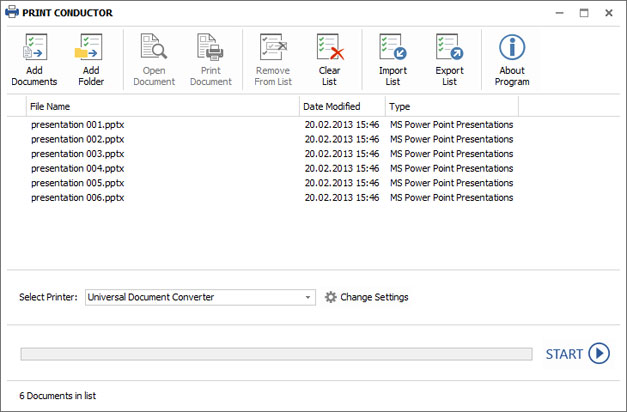
To convert your PowerPoint slides to JPEG files in batch mode use Print Conductor that has been specifically designed for batch processing documents and files. Please follow the instruction:
- Add PowerPoint presentation files to Print Conductor
- Select Universal Document Converter from the list of printers
- Click Change Settings and select JPEG Image as an output format
- Click OK to apply the necessary settings and click Start to begin converting PowerPoint to JPEG in batch mode
Automatic Conversion of PowerPoint to JPEG
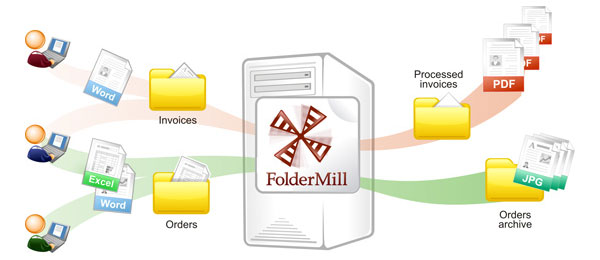
To automate the conversion task of converting PowerPoint to JPEG use Folder Mill. This software that goes along with the Universal Document Converter will help you schedule specific conversion tasks for some image files releasing the users from any extra manual work. For instance, in case the new image file received on corporate computers is saved as PowerPoint, while the company employees’ desire is to have it saved in JPEG, this conversion can be performed automatically.
- Install FolderMill on the server
- Create two folders for each company employee. For example, two folders for the employee John: C:\Joon-Input and C:\John-Output.
- Set a new rule to FolderMill to monitor the folders created and select that PowerPoint files put into folder C:\Joon-Input should be converted into JPEG and saved in the folder C:\John-Output.
- From now on conversion from PowerPoint to JPEG for the employee John will be performed automatically.
PowerPoint to JPEG Code Examples for Developers
Software developers can utilize Universal Document Converter to implement their own conversion practices. Universal Document Converter includes a public API and code examples for developers who can focus on their own specific tasks using available resources offered.
See examples of converting PowerPoint presentations to JPEG for different programming languages.
Related conversion tutorials:
-

Lori Hamilton
Cameron LNG, USA
«Universal Document Converter is beautiful and runs so smoothly! I will get a lot of use out of it. I'm the only designer at this site, and every department needs some kind of file converted all the time!»