


Convert AutoCAD DWG to JPEG
Drawings saved in the AutoCAD DWG format often need conversion to a universally recognized format. If you need to print or share a DWG file, it’s better to convert it into JPEG or PDF first, so you can use a mobile device or any image viewer or reader to view it, send via e-mail, print, etc. This guide will show you how to convert .dwg to .jpg in high resolution in different ways – depending on your task.
We’ll also see how to automate the batch conversion of multiple files to JPEG – how to convert many drawings from a list, a folder, from the command line interface and other ways.
On this page:
- How to Convert Autodesk AutoCAD Drawing to JPEG
- Watermark CAD Drawing for Copyright Protection
- Convert AutoCAD DWG to High-Quality JPG
- Other Conversion Tools
- About JPEG
- AutoCAD to JPEG Code Examples for Developers
How to Convert Autodesk AutoCAD Drawing to JPEG
Saving one AutoCAD DWG drawing as a JPEG file from AutoCAD is very easy with Universal Document Converter installed on your computer.
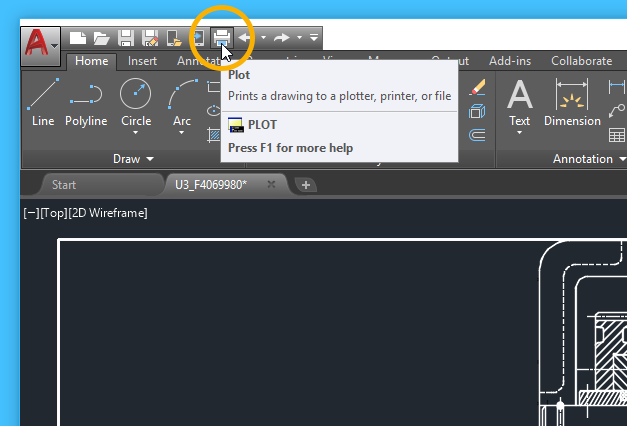
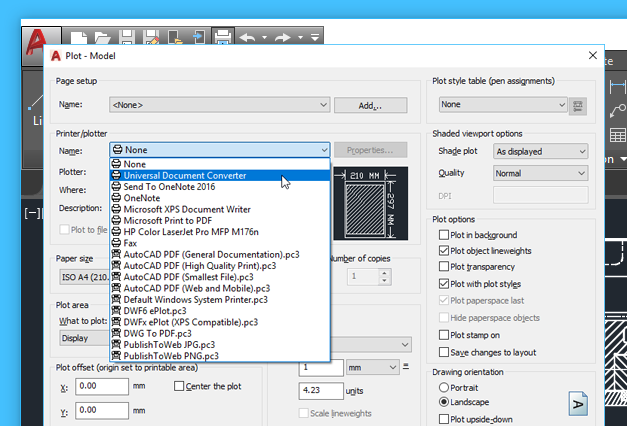
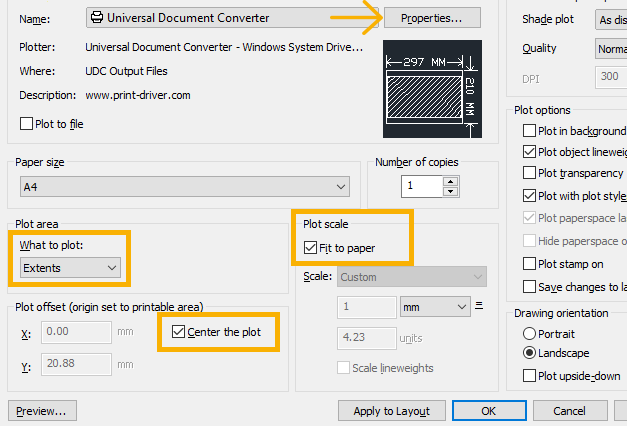
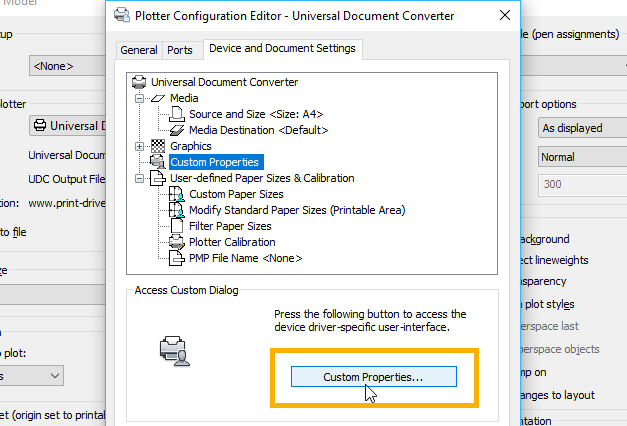
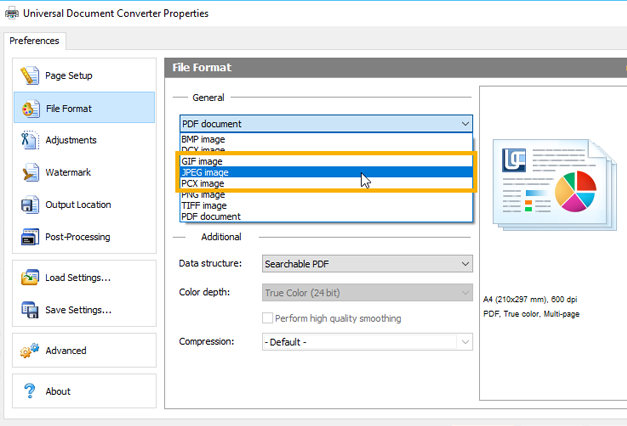
Besides JPEG conversion, Universal Document Converter can save your files to other filetypes – you can convert DWG/DXF to PDF, TIFF, BMP, DCX, PCX, and other images.

Watermark CAD Drawing for Copyright Protection
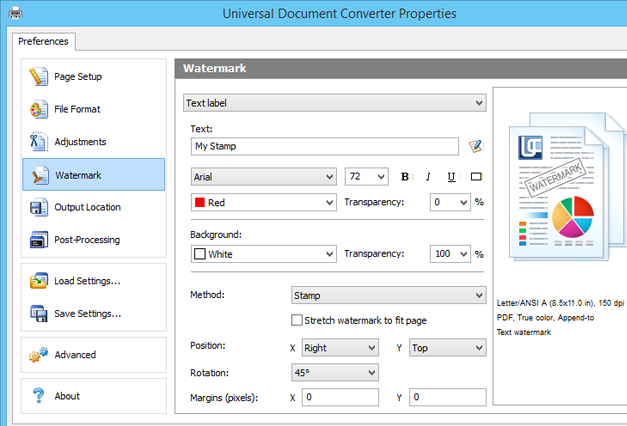
By watermarking your drawings, you can protect them from illegal use. To add a watermark on your Autodesk AutoCAD DWG files, please follow the instruction:
- Open the drawing and click Print (Plot);
- Select Universal Document Converter from the list of plotters and click Properties;
- Select Custom Properties on the Device and Document Settings tab and click Custom Properties button in the Access Custom Dialog area;
- On the Universal Document Converter Properties panel go to the Watermark section;
- Select the type of watermark you wish to use;
- Click OK in all further dialog windows.
Convert AutoCAD DWG to High-Quality JPG
You can select output JPEG quality in Universal Document Converter Properties:
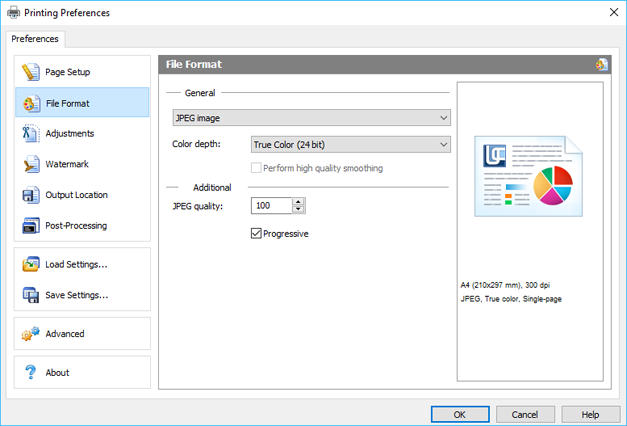
The JPEG format supports 24-bit color, and it can be selected using True Color (24 bit) option. JPEG is a lossy image format, and the output file size reduction can be achieved by selecting image quality (0-100). JPEG offers a tradeoff between quality and file size, and these values can be adjusted. All software tools mentioned in this article have these options.
Optimize as Progressive JPEG
Similar to the interlaced GIF, a progressive JPEG is a type of image that is used for publishing pictures on the web. Loading an optimized JPEG can be faster for slow Internet connections, compared to regular (baseline) JPEG. Select Progressive in Universal Document Converter Properties, and the output image will display progressively in a web browser. That is, it will render first at a low resolution, and then at progressively higher resolutions as downloading continues.
Other Conversion Tools
Convert AutoCAD DWG to JPEG in Batch Mode
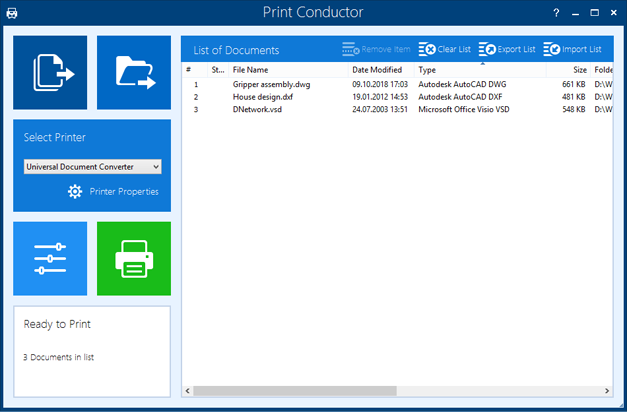
Print Conductor is a software that was designed specifically for batch printing of files. But it can convert too – with Universal Document Converter! The virtual printer can work along with batch processing software. It will help you save several drawings to the JPEG format at once simply by adding them to the list.
- Add several drawings you would like to convert
- Select Universal Document Converter as printer
- Click Print Properties and set JPEG Image as an output file format
- Click the Start Printing button to begin batch conversion

Automatically Convert DWG to JPG without AutoCAD
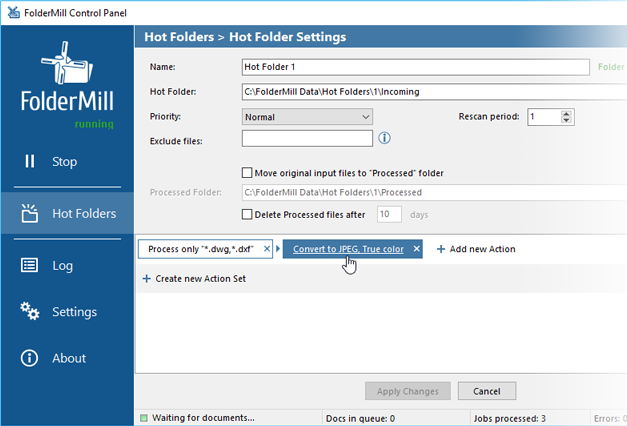
You can automate conversion to JPEG without the need to install commercial CAD systems or any other software. FolderMill is a Hot Folder file processing software for Windows or Windows Server. Its processing core can convert DWG, DXF, DFT, HPGL, PLT, VSD, VSDX to JPEG or other images in real time, based on Hot Folders. This program can automate conversion or printing DWG and DXF files without AutoCAD on a daily basis.

Free DWG to JPG Batch Converter
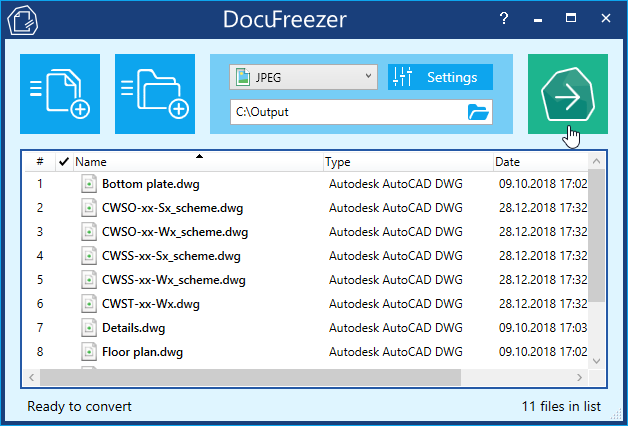
There’s a simple file converter which can convert files in batches to JPEG, TIFF, PDF, PNG – Docufreezer. It is a tool that can save multiple files, including CAD files, and export them to JPG. One of the remarkable features is the ability to convert DWG / DXF to searchable PDF. Moreover, this file converter can recognize text using in-built OCR. So you can also keep all your document scans in files with editable text – TXT or PDF. DocuFreezer is free for non-commercial use – you can give it a try using a link below.

About JPEG
The JPEG format (.jpg, .jpeg, .jpe, .jif, .jfif, .jfi) is a raster image format which is popular among users thanks to small file size and good image quality. It can simplify exchanging, emailing, uploading of images, CAD drawings or documentation. However, the format has its limitations: it doesn’t support alpha channels (transparency), and due to lossy compression the image may suffer in terms of visual quality when scaled or zoomed in. The software mentioned here can convert to JPEG and keep the highest image quality of CAD files preserving every detail.
AutoCAD to JPEG Code Examples for Developers
Software developers can make use of the existing conversion practices offered by Universal Document Converter. We offer several resources, such as public API and code examples for different programming languages that can be used in similar conversion projects.
If there is a necessity to install Universal Document Converter on a number of workstations, the installation process will be simplified via the automatic deployment feature.
Related conversion tutorials:
-

DI Alfred Dietrich
Austria
«I use all of the MS Office programs with the Universal Document Converter being an indispensable addition for creating PDF files and converting files to JPG and TIF file formats. The Universal Document Converter is intuitive in its structure, easy to handle and, most importantly, extremely reliable. Currently, I am using the 6.0 version on Windows 7 and I am very happy with it.»